Git Reminder
Initialize a repository
To initialize an existing repository enter the following command inside the repository.
git initTo create a new folder and initialize a new repository inside it enter the following command into the terminal. The new folder will be created inside the current folder.
git init <new folder name>Check the current status of your repository
Get a list of all the files inside your repository
lsGet a level up from your repository
cd ..Check the status of your repository
git statusUnstage files or discard changes
To unstage a file:
git reset HEAD <file_name>To unstage only one previous change:
get reset HEAD^1or to unstage a file:
git restore --staged <file-name>To discard changes:
git restore <file_name>or
git checkout --<file_name>Rename or move files
Rename a file in Git:
git mv <old_file_name> <new_file_name>Move a file in other folder.
⚠ NOTE: File and folder must be in one folder.
git mv <file_name> <target_folder_name>Create file
Create an empty file
touch <file_name>Create a file with some text inside
echo <text> >> <file_name>Delete a file or a folder
Delete a file
rm <file_name>Delete a folder
rm -rf <folder_name>Get the story of your commits
git logTo get all the commits history in one line:
git log --onelineTo get decorated onliner commit history:
git log --oneline --graph --decorate --allTo exit from the Story of commits mode press “q”.
To get all the commits of a specific file:
git log --<file_name>Find difference between commits
Find difference between an arbitrary and the last commit:
git diff <arbitrary_commit_number> HEADWork with branches
Check your existing branches first
git branch -aCreate a new branch
git branch my_new_branchSwitch to a new branch
git checkout my_new_branchCreate a new branch and switch to it simultaneously
git checkout -b <new_branch_name>Rename your branch:
git branch -m <old_name_branch> <new_name_branch>Delete your branch:
git branch -d <name_of_your_branch>Merge your side branch into main branch. You must be on your main branch for that.
git merge <name_of_your_branch>Merge your branch with “no fast-forward” flag to clearly see the branch in log
git merge --no-ffRebase process
Rebase your branch
git rebase <branch_name>If you have changes made in both local and global branches simultaneosly, then use such commands
git fetch

git pull --rebase
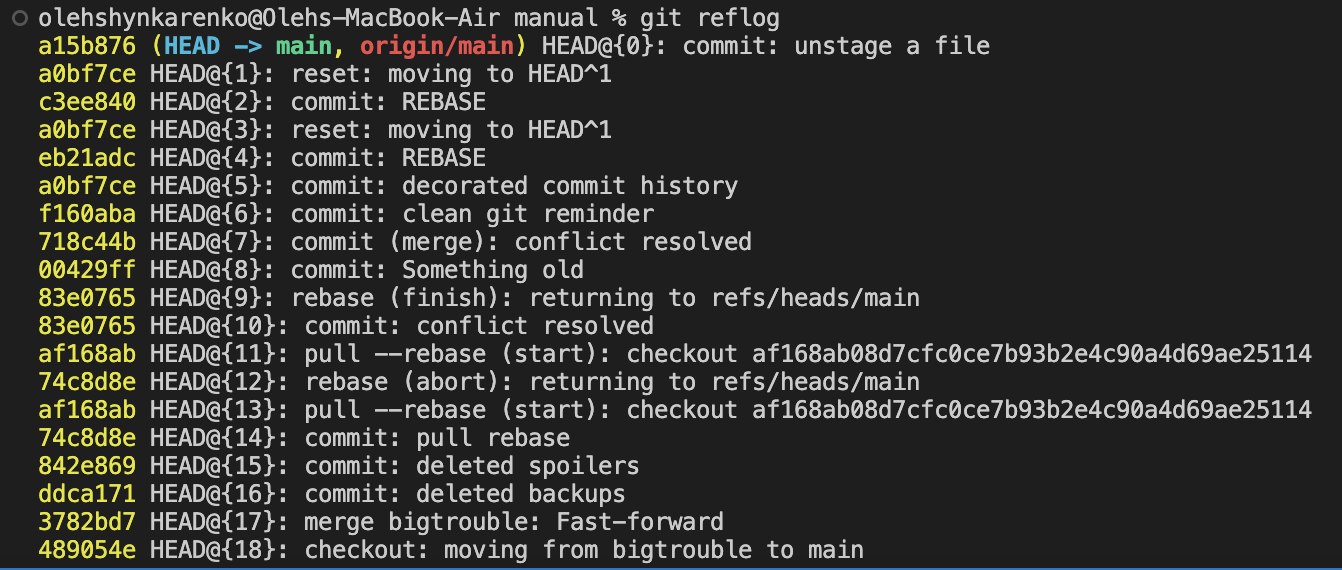
Reflog command
The “git reflog” command in Git is used to display a log of reference updates in your repository. It shows a list of previous states of your branches and other references, such as HEAD, that have been updated in the local repository.
The term “reflog” stands for “reference log.” It keeps a record of all the changes made to the tips of branches or other references, including commits that are no longer reachable from any branch.
git reflogThe result of git reflog command looks like this.